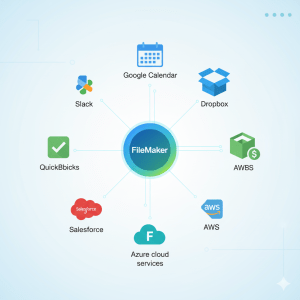
Google Workspace (formerly G Suite) offers email, calendar, contacts, task management, authentication, etc. FileMaker (by Claris) is a powerful low-code/custom-app platform. Integrating the two can boost productivity: centralize workflows, automate communication, sync calendars, etc. Here’s what’s new, what works well, and how to do it right.
What’s New / Recent Improvements
- Custom OAuth & Security Enhancements
FileMaker Server and FileMaker Pro recent versions support Custom OAuth including Google Workspace among identity providers. This makes secure single sign-on and external authentication easier.
With Google OAuth you can have users sign in using Google accounts, which simplifies managing credentials. - Send Mail Using OAuth (not just SMTP)
As of FileMaker 2023, there is a built-in way to use OAuth 2.0 for sending email via Gmail / Google Workspace (instead of or in addition to traditional SMTP). This is more secure and avoids some of the issues Gmail/Google have with less secure apps. - gManipulator Plug-in Updates
The gManipulator plugin from Productive Computing has been updated to work with FileMaker Pro and Server (2023-2025) and with Mac & Windows. It connects FileMaker with Google APIs: Mail, Contacts, Calendar, Tasks, etc. - Improved Integration via Claris Connect
FileMaker’s automation / integration tool, Claris Connect, has new script steps, supporting webhooks, JSON data, and easier flows that trigger from FileMaker apps. This allows better interaction with Google Workspace services. - Native FileMaker Tools
Native tools (without plugins) have been incrementally improved: the FileMaker Data API, custom OAuth in Authentication settings, etc. These updates allow less reliance on external plug-ins for many standard integrations.
What Integration Options / Tools Exist
Here are the tools/components you can use, depending on your needs and level of complexity:
| Tool / Plugin | What It Integrates | Pros | Considerations |
|---|---|---|---|
| gManipulator (Productive Computing) | Gmail, Google Contacts, Calendar, Tasks (send/pull etc.) | Very comprehensive; supports Mail, Calendar tasks; cross-platform; server-side option; recent updates for compatibility | License cost (single user and server); requires managing Google API credentials; some learning curve for scripting. |
| 360Works Email Plugin (v4) | Sending/receiving email (Gmail, Office 365) via OAuth, POP/IMAP etc. ( | Adds secure authentication; more modern approach; supports HTML or plain text email; better security. | May need maintenance; configuring OAuth tokens, managing refresh tokens; license cost. |
| Zulu (360Works) | Calendar sync: FileMaker ↔ Google Calendar (plus other calendars) | Keep events in sync, multiple platforms supported; works with server and subscription flows. | Setup takes work; resolving conflicting edits; permissions/security; mapping between FileMaker record fields and calendar fields. |
| Claris Custom OAuth + Native Authentication | Using Google Workspace as authentication provider; enabling users to sign in via Google; script steps / built-in Send Mail etc. | Lower cost (no extra plug-in), more maintenance under Claris support; works well for standard use cases. | May have limitations (what APIs/actions are supported); less flexibility than plug-in approach; may need to handle permissions, quotas, Google API changes. |
| Workflow / Automation Tools (Claris Connect, n8n, Webhooks) | Trigger flows between FileMaker and Google Workspace tools (e.g. Sheets, Admin API, Drive, Calendar) | Good for automating routine tasks; scalable; minimal coding. | Need good design of workflows; handling authentication, API limits, error cases; sometimes latency; costs. |
Key Use-Cases
Here are practical things businesses often do with FileMaker + Google Workspace integration:
- Using FileMaker to generate email notifications or reports, sending via Gmail automatically.
- Syncing Google Calendar with FileMaker event schedules (e.g. booking, appointments) so users can see events in their normal calendar apps.
- Managing Contacts between Google’s Address Book and FileMaker Contact records.
- Tasks / Reminder sync: e.g. when FileMaker creates a Task, it appears in Google Tasks or vice versa.
- Using Google Drive or Google Sheets as external data sources (for import/export) via APIs or workflows.
- Using Google OAuth as sign-in for users so that identity management is centralized (less overhead).
What to Watch Out For / Challenges
Even though integration is much better now, there are still pitfalls and things to plan for:
- Google API Limits & Quotas
Google enforces quotas, usage limits (on API calls, number of requests, etc.). If you’re syncing a lot of data (especially calendar events, contacts, etc.), you need to design to avoid hitting limits. Possibly include caching or batching. - Authentication & Security
- OAuth configuration can be tricky: you’ll need to set up projects in Google Cloud Console, manage client IDs, redirect URIs, scopes.
- Handling token refresh securely.
- Permissions: making sure users have the right permissions in Google Workspace.
- Group-based permissions / claims are sometimes limited (as of 2024/2025, Google’s OAuth tokens may not include all group claims by default). Workarounds (e.g. federating identity via Microsoft Entra ID) may be needed.
- Version Compatibility
Make sure your versions of FileMaker Pro / FileMaker Server / Plugins are compatible with the current Google API versions. Some older plug-ins may not work after updates (e.g. changes in Google’s security or deprecation of older authentication flows). - Data Mapping & Schema Design
You need good mapping between FileMaker fields and Google data (contacts, calendar events, tasks). Converting formats, handling attachments, custom fields, time zones, recurring event logic, etc., can be tricky. - Latency & Sync Conflicts
Especially with calendar/contacts: if multiple parties edit same event, you need strategies for conflict resolution. Syncing delays can cause inconsistent states. - Maintenance
APIs change. Google may deprecate scopes or ways of doing things (e.g. the “less secure apps” option). Plugins or workflows may break after Google or FileMaker updates. You must plan for updates.
How to Do an Integration — Step by Step
Here’s a generic roadmap you could follow if you plan to integrate FileMaker with Google Workspace for your business:
- Define What You Need to Integrate
Which services? Gmail, Calendar, Contacts, Tasks, Drive, Sheets, Admin, etc. What direction of sync? One-way or two-way? - Decide Tool vs. Native vs Plugin
If you need simple functionality (send email, authenticate users), maybe native OAuth + built-in Send Mail in FileMaker works. For more complex sync (Calendar + Tasks + Contacts + Drive) a plugin or workflow tool might be better. - Set Up Google Cloud Project
- Create project in Google Cloud Console.
- Enable necessary APIs (Calendar API, Gmail API, Contacts API, etc.).
- Set up OAuth consent screen (if needed), scopes, redirect URIs.
- Create credentials (OAuth client ID/secret).
- Configure FileMaker / Plugin
- If using OAuth, configure FileMaker’s custom authentication settings, or plugin’s settings.
- Install plugin if needed (e.g. gManipulator, 360Works etc.).
- Map data: set up fields, scripts to push/pull, schedule syncs or trigger flows/webhooks.
- Handle Permissions & Security
- Ensure users have appropriate Google Workspace permissions.
- Keep tokens secure.
- Possibly use least-privilege scopes.
- Anti-corruption / backup in case sync goes wrong.
- Error Handling & Monitoring
- Log sync statuses, errors.
- Monitor quotas.
- Provide user feedback if something fails (e.g. calendar sync failure, email bounce, etc.).
- Test Thoroughly
- Sync small dataset first.
- Test edge cases (recurring events, shared calendars, contacts with missing fields, etc.).
- Time zones.
- Deploy & Maintain
- Keep an eye on updates of FileMaker, plugins, Google API deprecation notices.
- Update plugin versions and API versions.
- Provide documentation for your team.
Suggestions & Best Practices
- Use two-way sync only where needed, because complexity and conflicts increase. If you only need one-way (e.g. FileMaker → Google Calendar), that’s simpler.
- For email, prefer using OAuth rather than simple SMTP where possible, for security and compliance.
- Always plan for failure modes: what happens if Google rejects tokens, or user revokes access.
- Use server-side integrations if many users and you don’t want each user to install client-side plugins.
- Leverage Claris resources / marketplace for up-to-date plug-ins/training (e.g. Productive Computing, 360Works).
- Stay current: monitor Google deprecation schedules, FileMaker’s release notes.
Conclusion
Integrating FileMaker with Google Workspace is very feasible now, and much more robust than it used to be. Between OAuth support, new script steps, better plugins, and workflow/automation tools, there are many options. The key is planning: knowing what you need to sync, selecting the right tools (native vs plugins), handling security, and staying updated.