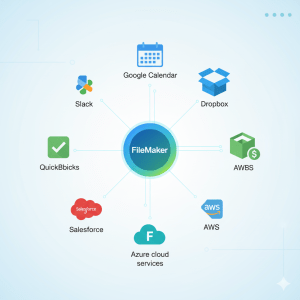
Every organization in the data-driven world of today must be able to meaningfully visualize and comprehend its data. Tableau is one of the most potent tools for data visualization and analytics, while Claris FileMaker provides a versatile platform for creating unique business solutions. By combining FileMaker and Tableau, you can close the gap between data management and data storytelling, enabling users to make decisions more quickly and intelligently.
Why Integrate FileMaker with Tableau?
FileMaker is exceptional at collecting, organizing, and managing business data. However, when it comes to advanced visualization, predictive trends, and complex dashboards, Tableau shines.
By integrating the two, you can:
- Transform FileMaker’s structured data into interactive dashboards
- Visualize real-time business metrics for better decision-making
- Share analytical insights across departments
- Enhance reporting with advanced charts, graphs, and filters
The integration allows you to leverage FileMaker’s low-code capabilities with Tableau’s robust analytics engine, creating a seamless flow of information.
How the Integration Works
The integration between FileMaker and Tableau is typically achieved using FileMaker’s Data API or ODBC (Open Database Connectivity). Both methods enable Tableau to access FileMaker’s data securely and efficiently.
1. Using the FileMaker Data API
The Data API allows Tableau to retrieve live FileMaker data in JSON format over HTTPS.
- Enable the FileMaker Data API in your FileMaker Server Admin Console.
- Create API credentials with appropriate privileges.
- In Tableau, connect to a Web Data Connector (WDC) or use a custom script to pull FileMaker data via the API.
This approach provides real-time updates and is ideal for organizations that need live dashboards reflecting the latest data.
2. Using the ODBC Connection
The ODBC connection provides a direct link between FileMaker and Tableau.
- Install the FileMaker ODBC driver on your system.
- Configure a DSN (Data Source Name) that points to your FileMaker database.
- In Tableau, choose “Other Databases (ODBC)” as your data source and connect using your DSN.
Once connected, you can import FileMaker tables and use Tableau’s drag-and-drop features to create rich, interactive visuals.
Practical Use Cases
Integrating FileMaker with Tableau can transform various business processes:
- Sales Analysis: Visualize performance trends and regional sales metrics.
- Project Management: Track timelines, progress, and resource allocation.
- Inventory Tracking: Monitor stock levels and supplier performance in real time.
- Customer Insights: Discover behavior patterns and engagement levels through analytics.
These insights help businesses move from data collection to actionable intelligence — a key step in digital transformation.
Best Practices for a Smooth Integration
- Clean Your Data: Ensure that fields in FileMaker are properly formatted before importing.
- Use Primary Keys: For better joins and relationships in Tableau.
- Automate Updates: Schedule data refreshes using Tableau Server or Tableau Cloud.
- Secure Access: Always use SSL and user authentication for FileMaker API or ODBC connections.
- Optimize Performance: Limit data sets and use filters for faster queries.
Conclusion
Integrating FileMaker with Tableau brings together the best of both worlds — FileMaker’s intuitive data management and Tableau’s unmatched visualization capabilities. This combination enables businesses to see beyond raw data, uncover trends, and make data-driven decisions with confidence.
As organizations increasingly rely on real-time insights, the synergy between FileMaker and Tableau is becoming essential. Whether you’re tracking KPIs, analyzing sales, or exploring customer behavior, this integration turns your FileMaker data into a dynamic visual story — one that drives smarter strategies and measurable growth.