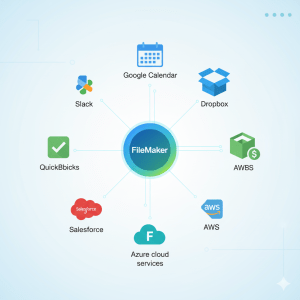
Directly integrating payments into your custom business applications is a huge win in today’s digital business environment. You can create solutions where your FileMaker app manages customer records, orders, or subscriptions while Stripe takes care of the payment processing with Claris FileMaker, a versatile low-code database/app platform. A more efficient process, less manual intervention, and fewer silos between your data and money flow are the outcomes.
This blog covers:
- Why you’d integrate FileMaker with Stripe
- Key benefits & use cases
- What to prepare before you start
- A step-by-step technical walkthrough (in broad strokes)
- Best practices, pitfalls & tips
- Summary and next steps
Why integrate FileMaker with Stripe?
The case for embedding payments
If you already use FileMaker to track customers, orders, invoices, subscriptions or services, adding the ability to take payments (or complement payment data) transforms it from “just a data app” into a full business workflow tool. Instead of exporting invoices, sending them manually, then reconciling payments separately, you can build a smoother flow.
Stripe is one of the more developer-friendly payment platforms: it supports a wide set of payment methods, recurring billing/subscriptions, webhooks, and has good API documentation.
Why FileMaker + Stripe makes sense
- FileMaker: Gives you the database, UI, business logic and scripting for your custom app.
- Stripe: Gives you the PCI-compliant payment rails, card & alternative payments, subscriptions, invoices, webhooks, etc.
By combining them, you keep your data in one place, reduce duplication, and let the app handle the full lifecycle: from customer record → invoice → payment → update record.
What you can do with it
- From FileMaker: generate an invoice for a customer, send them a payment link (via Stripe) and once paid, mark the invoice paid in FileMaker.
- Let customers subscribe to a service tracked in FileMaker; upon subscription creation in Stripe, update your records automatically.
- Build a payment form inside or connected to your FileMaker solution (via WebDirect or via embedded web page) so clients can pay without leaving your system.
- Use webhooks from Stripe to trigger FileMaker scripts (e.g., when a payment succeeds or fails) and update your data in real time.
- Track payment history, failed payments, upcoming renewal dates inside FileMaker alongside your other business data.
What you’ll need — Pre-work & Prerequisites
Before diving into the integration, make sure you’ve got the following:
Stripe side
- A Stripe account with access to your “Secret” API keys (and publishable key) for your environment (test & live).
- If you plan subscriptions or recurring billing, set up your pricing/products in Stripe.
- Plan for webhooks: you’ll likely need to configure a webhook endpoint in your Stripe dashboard so Stripe can notify you of events (payment succeeded, subscription cancelled, etc.).
- Ensure you understand your payment methods, currencies, countries you serve and any regulatory/PCI considerations.
FileMaker side
- A hosted FileMaker solution (FileMaker Server or FileMaker Cloud) where you can run scripts, perhaps serve WebDirect or custom web publishing if needed.
- A table(s) for your customers, invoices, payments, subscriptions, etc. (e.g., Customers, Invoices, Payments).
- Fields and scripts that can trigger the payment flow (e.g., “Send Invoice”, “Record Payment”, “Subscription Start”).
- If you will embed a payment form, or redirect to a Stripe Checkout page, you’ll need to integrate via Web Viewer or a hosted web page that communicates back to FileMaker.
- Security: Ensure any web-facing components are SSL-protected and your API keys are secured; you don’t want to store full card data in FileMaker (Stripe helps avoid that).
Integration method choice
There are multiple ways to integrate; the method you pick depends on your needs, your version of FileMaker, and whether you want full automation or manual steps.
Technical Walk-through: How you might integrate FileMaker with Stripe
Here’s a typical workflow that many FileMaker developers follow (adapt to your environment):
Step 1: Design your data model in FileMaker
- Table Customers: CustomerID, Name, Email, StripeCustomerID, etc.
- Table Invoices: InvoiceID, CustomerID, Amount, Currency, Status (Draft/Sent/Paid/Failed), StripeInvoiceID or PaymentIntentID.
- Table Payments: PaymentID, InvoiceID, CustomerID, Amount, DatePaid, StripePaymentID, Status.
- Table Subscriptions (if using recurring): SubscriptionID, CustomerID, StripeSubscriptionID, Status, NextBillingDate, etc.
- Also: create scripts for generating invoices, sending payment links, updating statuses.
Step 2: Configure Stripe and get API keys
- In Stripe > Developers > API keys: note your Publishable Key and Secret Key (for test and live).
- In Stripe > Webhooks: add a new endpoint (for example:
https://yourdomain.com/fmStripeWebhook.php) and select events you care about (invoice.paid, payment_intent.succeeded, customer.subscription.deleted, etc.). - If using Stripe Checkout: set up your products/pricing and create a Checkout session via API.
- If supporting subscriptions: create pricing/plans in Stripe.
Step 3: Create a payment link / checkout session from FileMaker
- From a FileMaker script: gather the customer record (including StripeCustomerID if exists, else create one).
- Use FileMaker’s “Insert from URL” (with cURL options) to call Stripe’s API endpoint (e.g.,
https://api.stripe.com/v1/checkout/sessions) with parameters likecustomer,line_items,mode=subscriptionormode=payment,success_url,cancel_url. - Retrieve the
checkout_session.idandurlfrom the JSON response. - Store the session ID in your Invoice record (e.g., StripeSessionID) and optionally redirect the user (via Web Viewer or open URL) to the session URL so they can complete payment.
Step 4: Handle webhooks to update FileMaker
- When Stripe sends an event (e.g., payment succeeds), your webhook endpoint receives it.
- In the webhook script (likely a PHP or Node.js page) you parse the event, find the Invoice ID or PaymentIntentID stored in FileMaker, then via FileMaker Data API (or REST call) update the Invoice’s Status to “Paid” and create a Payment record with details from Stripe.
- In FileMaker you can optionally trigger further scripts: send thank-you email, update inventory, etc.
Step 5: Automate and monitor
- Use FileMaker’s scheduled scripts to reconcile or check for “Payments not updated” etc.
- Use Stripe’s dashboard and reports to monitor revenue, failed payments, subscriptions churn.
- In FileMaker you might build dashboards that show total revenue, outstanding invoices, subscription renewal rate — using the data you captured.
Best Practices & Pitfalls to Watch
Best Practices
- Avoid storing full card data: Let Stripe handle card numbers and card-holder data; store only Stripe reference IDs in FileMaker.
- Use unique identifiers: Store the StripeCustomerID, StripePaymentID, StripeInvoiceID so you can trace back.
- Secure your API keys: Treat secret keys like passwords. Use test keys during development, live keys for production.
- Use webhooks: Rather than relying on manual status checks, webhooks allow real-time updates from Stripe → FileMaker.
- Build user-friendly flows: For example: from FileMaker click “Send Payment Link”, customer pays, automatically update status — minimal manual work.
- Add error-handling and logging: Payment failures, network errors, timeouts all happen; log them and alert appropriately.
- Test in Stripe’s test mode first: Use test cards, simulate webhook events, verify your scripts before going live.
- Think about subscriptions & renewals early: If you have recurring billing, plan for handling cancellations, renewals, failed payments, and update FileMaker accordingly.
Common Pitfalls and How to Avoid
- Not capturing the payment result: If you don’t trigger a webhook or poll Stripe, you may mark an invoice paid prematurely.
- Using FileMaker incorrectly for card capture: Trying to capture card numbers directly in FileMaker raises PCI compliance issues — use Stripe’s hosted forms or Checkout.
- Hard-coding URLs or keys for production: Make sure your live vs test environments are distinct and keys are switched.
- Not reconciling failed or partial payments: Payments may fail due to insufficient funds, expired cards — build logic to handle these states.
- Layouts or scripts not built for mobile: If you allow payment via WebDirect or FileMaker Go, test the flow on mobile devices.
- Webhook endpoint not secure or accessible: Stripe needs a publicly reachable HTTPS endpoint; if behind firewall or inaccessible, you’ll miss events.
Use-Case Example: Invoice Payment Flow
Let’s illustrate with a practical example — a small business uses FileMaker to generate service invoices, and wants customers to pay via card.
Scenario: A technician marks a job complete in FileMaker; the system generates an invoice for $450, sends a link to the customer; once paid, the job status is marked “Paid” in FileMaker and reports update.
Steps:
- In FileMaker: On job complete, script “Create Invoice” runs: creates an Invoice record (InvoiceID = 1234, Amount = 450, Status = “Sent”).
- Script calls Stripe API: creates Stripe Customer if none exists (via
/v1/customers). - Script creates Stripe Checkout Session for payment of $450, with success_url
https://yourdomain.com/fmRedirect.html?invoice=1234&status=success, cancel_url etc. - Script stores StripeSessionID and SessionURL in the Invoice record.
- FileMaker emails the customer the SessionURL or opens Web Viewer for them.
- Customer pays using Stripe Checkout.
- Stripe sends webhook event
checkout.session.completed(orpayment_intent.succeeded). Your endpoint receives it, finds InvoiceID = 1234, then updates FileMaker (via Data API or Insert from URL) to mark Invoice.Status = “Paid”, create Payment record (PaymentID = 5678, StripePaymentID = ‘pi_ABCDEF’, DatePaid = today). - In FileMaker dashboards: outstanding invoices list no longer shows invoice 1234; revenue reports include $450.
- Optionally trigger follow-up: send a thank you email, mark job closed, prompt for feedback.
Summary & Next Steps
Integrating FileMaker with Stripe provides your business app with powerful payment processing capability: you remain in control of your data model and user interface, while Stripe handles the payment security and processing. It transforms your workflow from “send invoice → wait for payment → reconcile” into “generate invoice → pay now → auto-update records”.
Next steps for you:
- Audit your FileMaker solution: where are your invoices, subscriptions or payments? Which parts could benefit from automation?
- Set up a Stripe test account.
- Map out your payment flow: one-time payments? Subscriptions? Payment links? Sample workflows.
- Build a proof-of-concept: maybe an invoice generation script that creates a Stripe payment link and updates your data upon success.
- Once successful in test mode, switch to live keys, test again, then deploy.
- Monitor your usage, payment failures, customer experience, and iterate for improvements.
You can also explore ready-made modules: e.g., the “FileMaker ↔ Stripe Integration Module” or solutions like “fmStripe” which provide pre-built functionality. (They can save time if you don’t want to build from scratch.)
By embedding payments directly into your FileMaker system you get a smoother flow for both your team and your customers — fewer manual steps, fewer errors, more real-time insight, and ultimately a better experience.