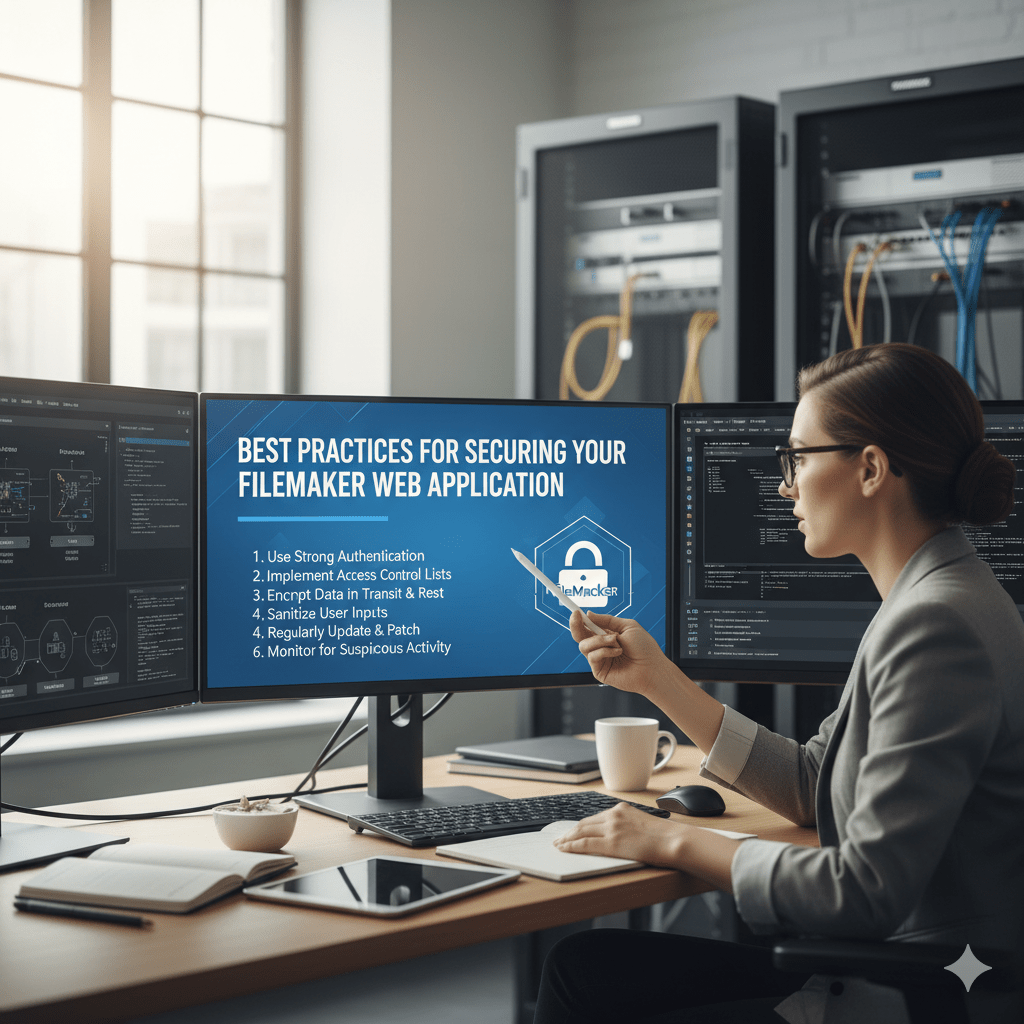
As businesses move more of their operations online, data security becomes a top priority. Whether you’re using FileMaker WebDirect, FileMaker Cloud, or a custom web app integration, protecting sensitive information from unauthorized access, data loss, or breaches is crucial.
Your FileMaker Web Application can be a powerful engine for your business — but only if it’s secure, reliable, and well-managed. Let’s explore the best practices to keep your FileMaker Web App safe and resilient.
Why FileMaker Security Matters
FileMaker Web Apps often handle business-critical data — customer information, sales records, inventory, and internal operations.
Without proper security measures, you risk data exposure, financial loss, and loss of customer trust.
Apple’s Claris FileMaker platform already provides strong built-in security features, but understanding how to configure and manage them is key to maintaining full protection.
1. Enforce Strong Authentication
The first line of defense is always who gets in.
- Use unique usernames and strong passwords for each user.
- Enforce password complexity (mix of uppercase, lowercase, symbols, and numbers).
- Set up password expiration policies for regular updates.
- Integrate OAuth or external authentication (like Google Workspace, Microsoft Azure AD, or Apple ID) for more secure and managed login systems.
Pro Tip: Avoid using shared or default admin credentials — these are often the easiest targets for attackers.
2. Use SSL/TLS Encryption
Your FileMaker Web App must always run over HTTPS.
SSL/TLS encryption ensures that all data transmitted between users’ browsers and your FileMaker Server remains private and secure.
- Install a valid SSL certificate on your FileMaker Server.
- Renew certificates before they expire.
- Avoid self-signed certificates for production environments.
Encryption keeps sensitive business data safe, even when accessed remotely.
3. Configure File Access Privileges Carefully
FileMaker allows granular control over what users can see and do.
Use custom privilege sets to define access levels:
- Admin users: full control
- Managers: view/edit specific modules
- Staff: limited access
- Guests: read-only (if needed)
Tip: Follow the “Principle of Least Privilege” — users should only have access to what they need.
4. Enable File Encryption at Rest (EAR)
Even if your server is compromised, encryption at rest ensures that your FileMaker files remain unreadable without the correct credentials.
You can enable EAR directly from FileMaker Pro Advanced using a strong encryption password.
This adds an additional layer of protection against physical theft or unauthorized access to the database file.
5. Keep FileMaker Server & Plugins Updated
Outdated software is one of the biggest security risks.
Always keep your FileMaker Server, WebDirect, and any third-party plugins up to date with the latest versions and patches.
Updates often include critical security fixes and performance improvements.
Set a regular maintenance schedule for updates and server checks.
6. Control User Sessions and Timeouts
Set auto-logout policies for inactive users.
Idle sessions can become open doors for unauthorized access if devices are left unattended.
Example:
- Auto logout after 15–30 minutes of inactivity.
- Limit concurrent sessions per user if necessary.
7. Use Secure Custom Web Publishing (CWP) APIs
When using FileMaker Data API or XML/PHP publishing, always:
- Authenticate API users with secure tokens.
- Avoid exposing database credentials in code.
- Implement request throttling and input validation to prevent abuse.
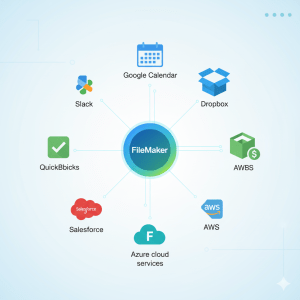
If you’re integrating your FileMaker system with external web platforms, make sure your endpoints are HTTPS-secured and access-controlled.
8. Regular Backups and Recovery Plan
No security plan is complete without backups.
Schedule automatic backups of your FileMaker databases and store copies in a secure, offsite location or cloud service.
Test your backups regularly — a backup is only as good as its recovery.
9. Monitor and Log Activity
FileMaker Server provides detailed access logs and event logs.
Review them regularly to:
- Detect unusual access attempts
- Track failed logins
- Monitor data exports or admin changes
You can also integrate monitoring tools or alerts for real-time threat detection.
10. Partner with a Certified FileMaker Developer
Security is not a one-time setup — it’s an ongoing process.
Working with an experienced FileMaker development team ensures your app is configured with the right permissions, encryption, and server settings.
At idiosol, we specialize in secure FileMaker Web App development, combining advanced customization with strict security practices — so your business data stays safe, accessible, and compliant.
Conclusion
A secure FileMaker Web App isn’t just about protection — it’s about trust, reliability, and performance.
By following these best practices, you can ensure that your business data remains safe from digital threats while maintaining smooth operations online.