Artificial intelligence is no longer merely a catchphrase; it is revolutionizing how companies function, make choices, and interact with their clientele.
The exciting thing is that you can use AI in your workflows without a complicated platform or a large tech stack.
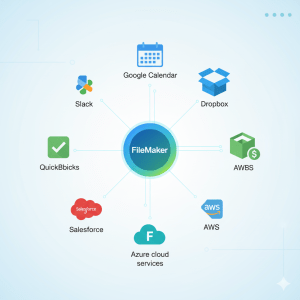
With Claris FileMaker, developers can integrate AI APIs directly into custom business apps — creating smart, data-driven systems that think, adapt, and respond intelligently.
This guide walks you through how to connect FileMaker with AI APIs, practical examples, and best practices for developers who want to make their solutions smarter — without reinventing the wheel.
Why Bring AI into FileMaker?
FileMaker already gives developers a low-code environment for building powerful, custom apps.
Integrating AI APIs extends that power — helping businesses automate insights, simplify processes, and enhance decision-making.
Here’s what AI can bring to your FileMaker app:
✅ Automated data analysis — generate insights from customer records, sales data, or logs.
✅ Smart recommendations — suggest next actions or personalized content.
✅ Natural language processing (NLP) — turn text or speech into structured data.
✅ Image recognition and OCR — automate document tagging or visual input.
✅ Predictive modeling — forecast sales, risks, or maintenance needs.
In short: AI turns your FileMaker solutions from data handlers into intelligent problem-solvers.
Step 1: Understand How FileMaker Connects to APIs
Every AI service — whether OpenAI, Google Cloud AI, or Azure Cognitive Services — provides data through APIs (Application Programming Interfaces).
In Claris FileMaker, you can connect to these APIs using:
- The
Insert from URLscript step (for making HTTP requests) - JSON functions (like
JSONSetElement,JSONGetElement) to structure and read data - cURL options for authentication and parameter handling
You don’t need a separate connector — FileMaker’s built-in tools are powerful enough for most API integrations.
Step 2: Choose the Right AI API for Your Use Case
Not all AI APIs are created equal. Here are popular categories and examples:
| Use Case | AI API Example | Integration Idea |
|---|---|---|
| Text generation & summaries | OpenAI API | Draft automated client emails or reports |
| Sentiment analysis | Google Cloud Natural Language | Analyze customer feedback |
| Image recognition | Microsoft Azure Vision | Identify assets from uploaded images |
| Speech-to-text | AssemblyAI or Whisper API | Transcribe meeting notes directly in FileMaker |
| Predictive insights | Amazon SageMaker | Forecast trends or detect anomalies |
Start small — choose one API that solves a clear problem and expand from there.
Step 3: Set Up Your First API Call in FileMaker
Here’s a basic workflow:
- Obtain API credentials (key, endpoint URL) from your chosen AI provider.
- In FileMaker, create a script using
Insert from URL. - Add your headers (including
Authorization: Bearer <API_KEY>). - Pass your data (text, image, etc.) as a JSON body.
- Parse the response with
JSONGetElementto extract the AI output.
Example snippet (simplified):
Set Variable [ $apiURL ; "https://api.openai.com/v1/chat/completions" ]
Set Variable [ $headers ; "Authorization: Bearer " & $apiKey ]
Set Variable [ $json ; JSONSetElement ( "{}" ;
    ["model" ; "gpt-4" ; JSONString] ;
    ["messages[0].role" ; "user" ; JSONString] ;
    ["messages[0].content" ; "Summarize project notes" ; JSONString]
) ]
Insert from URL [ Select ; With dialog: Off ; $response ; $apiURL ;
    cURL options: "-X POST --header \"" & $headers & "\" --data " & $json
]
Set Variable [ $output ; JSONGetElement ( $response ; "choices[0].message.content" ) ]
Now you’ve just connected FileMaker to an AI model — no external app required.
Step 4: Build Real Business Use Cases
Once connected, the possibilities expand fast. Here are examples Idiosol has explored with clients:
💬 Smart Support Dashboards: FileMaker integrates with OpenAI to auto-summarize customer queries and suggest ticket responses.
📄 Document Intelligence: FileMaker uses OCR + NLP APIs to extract data from scanned invoices and auto-populate fields.
📈 Predictive Sales Insights: Machine learning APIs analyze FileMaker’s historical data to forecast trends or detect irregularities.
🧠 Knowledge Assistants: Build an in-app chatbot that queries internal data via FileMaker and responds in natural language.
Each integration helps users work smarter, not harder — all while keeping FileMaker as the central hub.
Step 5: Keep It Secure and Maintainable
Security and scalability are crucial when working with AI APIs.
Follow these best practices:
- Store API keys securely in FileMaker’s encrypted fields or environment variables.
- Limit user access to scripts handling sensitive data.
- Implement logging for all API calls (timestamp, user, endpoint).
- Test and monitor performance — AI requests can be heavy.
By maintaining clean, documented scripts, your AI integrations remain scalable and reliable over time.
Conclusion
Integrating AI APIs with Claris FileMaker is no longer a futuristic concept — it’s a practical step toward smarter, more adaptive business systems.
At idiosol, we help organizations design FileMaker solutions that blend custom workflows with intelligent automation, giving teams real-time insights and efficiency that traditional systems can’t match.
Whether you’re starting with a simple chatbot or a predictive dashboard, FileMaker gives you the flexibility to make AI work for your business — seamlessly and securely.
Because in the right hands, AI isn’t just smart tech — it’s smart business.