Integrations & APIs
Connecting FileMaker with Web Applications, APIs, and AI Automation
By FileMaker Programmer team8 min read
In this article
- Why business integrations matter
- Connecting FileMaker to web applications
- API integration concepts, without the jargon
- Automation use cases worth building
- AI integration possibilities
- Data privacy and security
- Error handling and maintenance
- Practical implementation considerations
- Frequently asked questions
- Conclusion
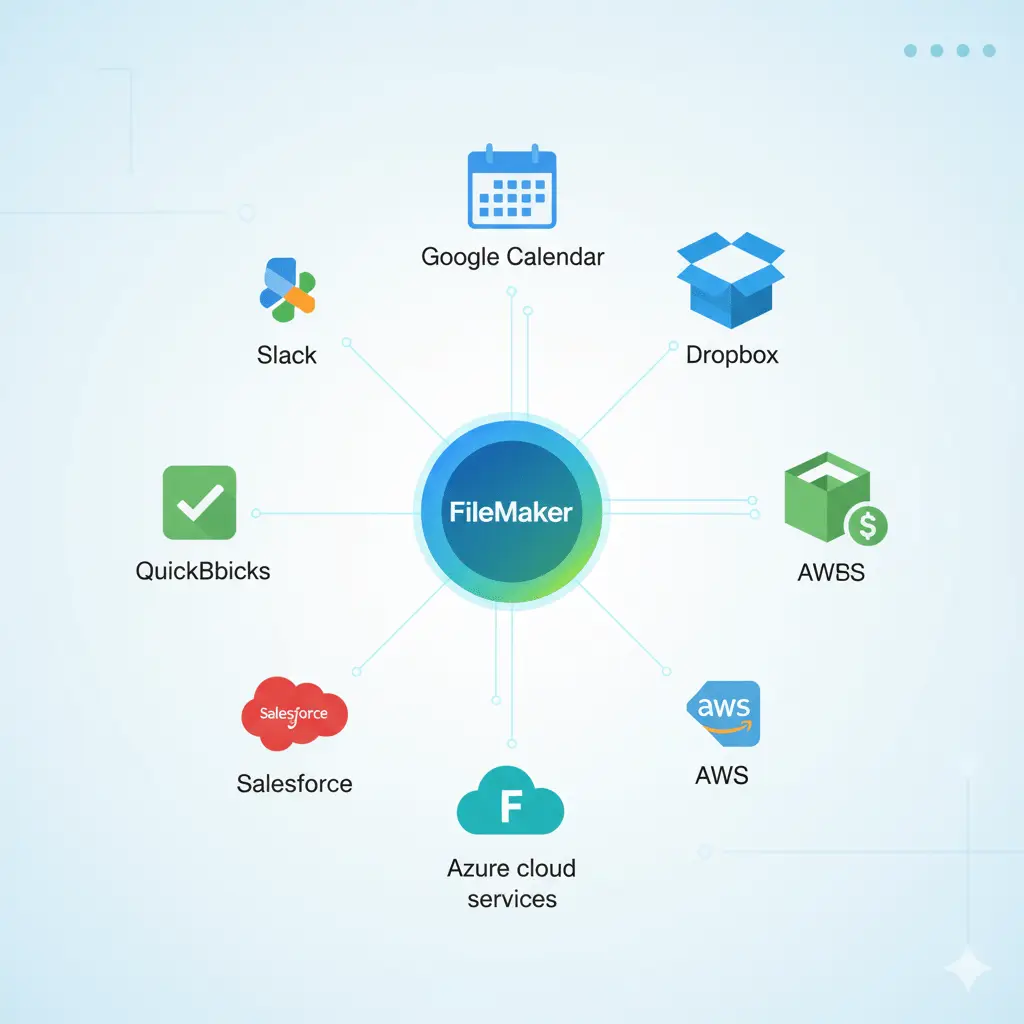
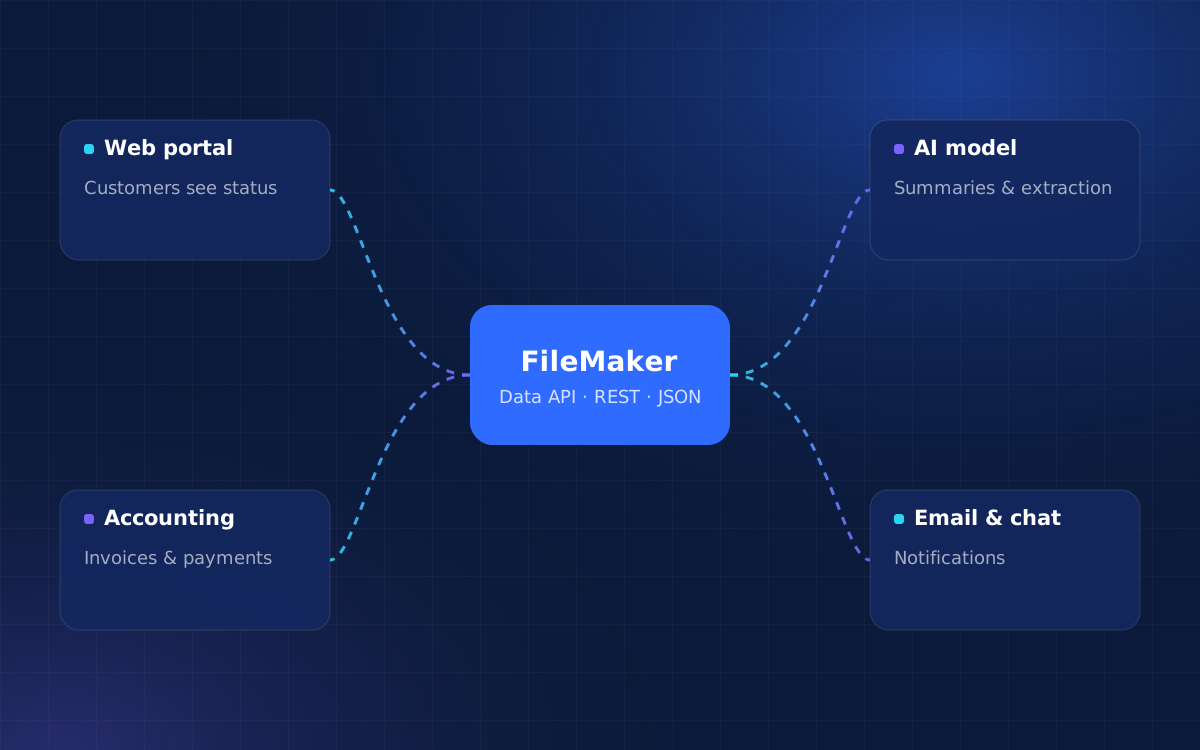
A FileMaker system that holds your customers, orders and jobs is valuable. A FileMaker system that also sends invoices to your accounting software, receives orders from your online store, shows customers their order status in a browser and summarises long case notes automatically is a different kind of asset altogether.
This article explains how those connections work: linking FileMaker to web applications, calling and exposing APIs, choosing automations worth building, adding AI responsibly, and keeping everything reliable once it is live.
Why business integrations matter
Every gap between two systems is filled by a person. Someone exports a report and imports it elsewhere; someone retypes an order; someone checks two screens to confirm a payment arrived. Each step is small, but together they cost time, introduce errors and slow down the moment a customer gets an answer.
Well-designed integrations remove those steps. They also make reporting trustworthy, because the numbers in each system agree. And they let you choose the best tool for each job — a specialist accounting package, a popular e-commerce platform — without giving up a single, connected view of the business.
Connecting FileMaker to web applications
There are three common ways to put FileMaker data in front of people through a web browser. Which one fits depends mostly on who the users are.
FileMaker WebDirect
WebDirect publishes your existing FileMaker layouts in a browser with little extra work. It suits internal users who need occasional browser access. It is not designed for large public audiences or a heavily customised look.
A low-code web front end
Platforms such as FmBetterForms render a modern, responsive single-page app that reads and writes FileMaker data in real time. Business logic stays in FileMaker scripts, so this is often the fastest route to a client portal, booking form or field app.
A custom web application
For public products, high traffic or very specific interactions, a custom web application built with a framework such as React talks to FileMaker through an API layer. This gives complete control over design and performance in exchange for a separate codebase to maintain.
In all three cases, one principle holds: browsers should never hold FileMaker credentials. Requests go through a server-side layer that authenticates, validates input and only exposes the records and fields the web app needs.
API integration concepts, without the jargon
An API is a defined way for one piece of software to ask another for something. Most modern services offer a REST API: you send a request to a web address, include some credentials, and receive a response — usually in JSON, a structured text format.
FileMaker calling other systems
FileMaker scripts can send requests to external APIs, parse the JSON that comes back and write it into records. This is how a FileMaker solution creates an invoice in accounting software, looks up a shipping rate or retrieves new orders.
Other systems calling FileMaker
The FileMaker Data API works the other way round. A web app or middleware service logs in, receives a session token and can then find, create, edit or delete records on specific layouts. Access is controlled by the account’s privilege set, so an integration account can be limited to exactly what it needs. FileMaker also supports OData, a standard many reporting tools understand.
Authentication
APIs need to know who is calling. Common patterns are API keys, OAuth (where a user grants access and the integration receives tokens that expire and refresh) and basic credentials over an encrypted connection. Handling token expiry properly is one of the most common differences between an integration that works in a demo and one that works for years.
Webhooks
Instead of FileMaker repeatedly asking “anything new?”, many platforms can send a webhook — an automatic message — the moment something happens, such as a new order. A small web service receives it and passes it to FileMaker, which keeps data close to real time without constant polling.
Automation use cases worth building
Not every task should be automated. The best candidates are frequent, rule-based and currently done by hand. Some examples we see often:
- Order to invoice. When an order is marked complete in FileMaker, create the invoice in the accounting system and store the reference back on the order.
- E-commerce sync. Pull new online orders into FileMaker and push stock levels back to the store so customers don’t buy items that are out of stock.
- Scheduled reports. Generate a PDF summary every Monday morning and email it to managers.
- Status notifications. Message a team channel or email a customer when a job reaches a given stage.
- Data hygiene. Nightly scripts that flag duplicates, missing fields or overdue records for review.
Lighter hand-offs between apps can also be built visually with Claris Connect.
AI integration possibilities
AI is most useful when it works on your own data, inside an existing workflow, with a person checking results that matter. Recent FileMaker versions include AI-related script steps and functions — for example for embeddings and semantic search — and FileMaker can also call AI services directly through their APIs.
Practical uses include:
- Summaries. Condensing a long customer or case history into a few lines before a call.
- Document extraction. Turning a supplier invoice or form into structured fields that staff confirm rather than type.
- Classification and routing. Tagging incoming requests by topic or urgency and assigning them to the right queue.
- Semantic search. Finding records by meaning — “jobs where the customer complained about noise” — rather than exact keywords.
- Drafting. Preparing routine replies or descriptions for a person to review and send.
Treat predictions and generated text as suggestions. Measure accuracy on a sample of your own data before relying on it, and keep a clear record of what the AI produced and what a person approved. Our AI automation page covers how we approach this.
Data privacy and security
Integrations widen the number of places your data travels, so security has to be designed in rather than added later.
- Least privilege. Give each integration its own account with access only to the layouts, records and actions it needs.
- Encrypted connections. Use HTTPS with valid certificates for every API call, and encrypt FileMaker files at rest.
- Credentials on the server. Store keys and passwords in server-side configuration, never in browser code or shared documents, and rotate them when people leave.
- AI data handling. Check whether an AI provider retains or trains on submitted data, choose settings or plans that prevent it, and consider a self-hosted model for sensitive information.
- Minimise what you send. Pass only the fields a service needs. A summary doesn’t require a customer’s payment details.
- Regulatory context. If you handle health, financial or personal data, map which regulations apply and confirm each service in the chain supports them.
Error handling and maintenance
Integrations fail for ordinary reasons: a partner API is down for maintenance, a token expires, someone renames a field, a record arrives with an unexpected value. The difference between a fragile integration and a dependable one is how it behaves when that happens.
- Log every call. Record what was sent, what came back, and when. When something goes wrong, the log answers the question in minutes.
- Retry sensibly. Temporary errors should be retried automatically with increasing delays; permanent errors should not be retried endlessly.
- Alert a person. When something can’t be resolved automatically, notify someone with enough detail to act.
- Make operations repeatable. Design syncs so that running them twice doesn’t create duplicates.
- Watch for change. Third-party APIs evolve and deprecate versions. Subscribe to their change notices and review integrations periodically.
Ongoing support and maintenance keeps these safeguards working as the systems around them change.
Practical implementation considerations
Decide the source of truth
For each type of record, agree which system owns it. If both FileMaker and the accounting package can edit customer addresses, you need explicit rules for which change wins.
Start with one-way flows
One-way syncs are simpler to build and reason about. Add two-way behaviour only where both sides genuinely need to edit the same data.
Check limits and costs
Many APIs restrict how many requests you can make, and some charge per call or per tier. AI services usually bill by usage. Factor these into the design and the budget.
Test with real data
Sample data rarely contains the accents, long names, blank fields and odd formats that production data does. Test with a realistic copy before going live.
Document the integration
Write down what each connection does, which accounts it uses and how to restart it. Future you — or a future developer — will need it.
Frequently asked questions
Can FileMaker connect to any API?
Most modern services with a REST API and JSON responses can be integrated directly from FileMaker scripts. Unusual protocols may need a small middleware service in between.
Is the FileMaker Data API safe to expose to a website?
It should sit behind a server-side layer rather than be called from browser code. That layer holds the credentials, validates input and limits what the website can do.
Do we need FileMaker Server for integrations?
For the Data API, scheduled scripts and reliable always-on integrations, yes — the solution needs to be hosted on FileMaker Server or FileMaker Cloud.
Will AI features send our data outside the company?
That depends on the provider and configuration. Cloud AI services process data on their servers; some offer settings that exclude data from training, and self-hosted models keep data on your infrastructure.
How do we know an integration has stopped working?
A good integration logs activity and alerts someone when errors persist, so you hear about problems before your customers do.
Conclusion
Connecting FileMaker to web applications, APIs and AI turns a database into the hub of how your business runs. The technology is approachable; what makes integrations succeed is design discipline — clear data ownership, least-privilege access, careful handling of credentials and AI data, and error handling that assumes things will occasionally go wrong.
If you have systems that don’t talk to each other, tell us which ones. We’ll suggest the simplest reliable way to connect them. For background on the platform itself, see our practical guide to Claris FileMaker development.
Related articles

Turn ideas into a working system
Share what you’d like to build or improve, and we’ll suggest a practical first step.