Integrations & APIs
FileMaker + QuickBooks Online Integration: Options, Costs and What to Sync
By FileMaker Programmer team6 min read
In this article
Many businesses run their operations in FileMaker — jobs, orders, stock, scheduling — and their finances in QuickBooks Online. Without an integration, someone retypes customers and invoices from one into the other. That costs hours every week and introduces errors that only show up at month-end.
A FileMaker QuickBooks Online integration removes the double entry. This guide explains the integration options, what you should and shouldn’t sync, the technical rules of the QuickBooks API, typical costs and the mistakes we see most often.
Start with one question: which system owns what?
Before choosing a tool, decide the system of record for each type of data. Most problems in accounting integrations come from two systems both believing they own the same thing.
A common split:
Data | Usually owned by |
Customers and contacts | FileMaker (created during sales or jobs), pushed to QuickBooks |
Products and services (items) | QuickBooks, pulled into FileMaker, or FileMaker if it manages pricing |
Estimates and quotes | FileMaker |
Invoices | Created in FileMaker, posted to QuickBooks |
Payments | QuickBooks (or a payment provider), pulled back to FileMaker |
Chart of accounts, tax codes | QuickBooks |
Bills and vendors | Depends on whether purchasing lives in FileMaker |
Write this table for your own business before any development starts. It decides the direction of every sync.
What to sync — and what to leave alone
Usually worth syncing
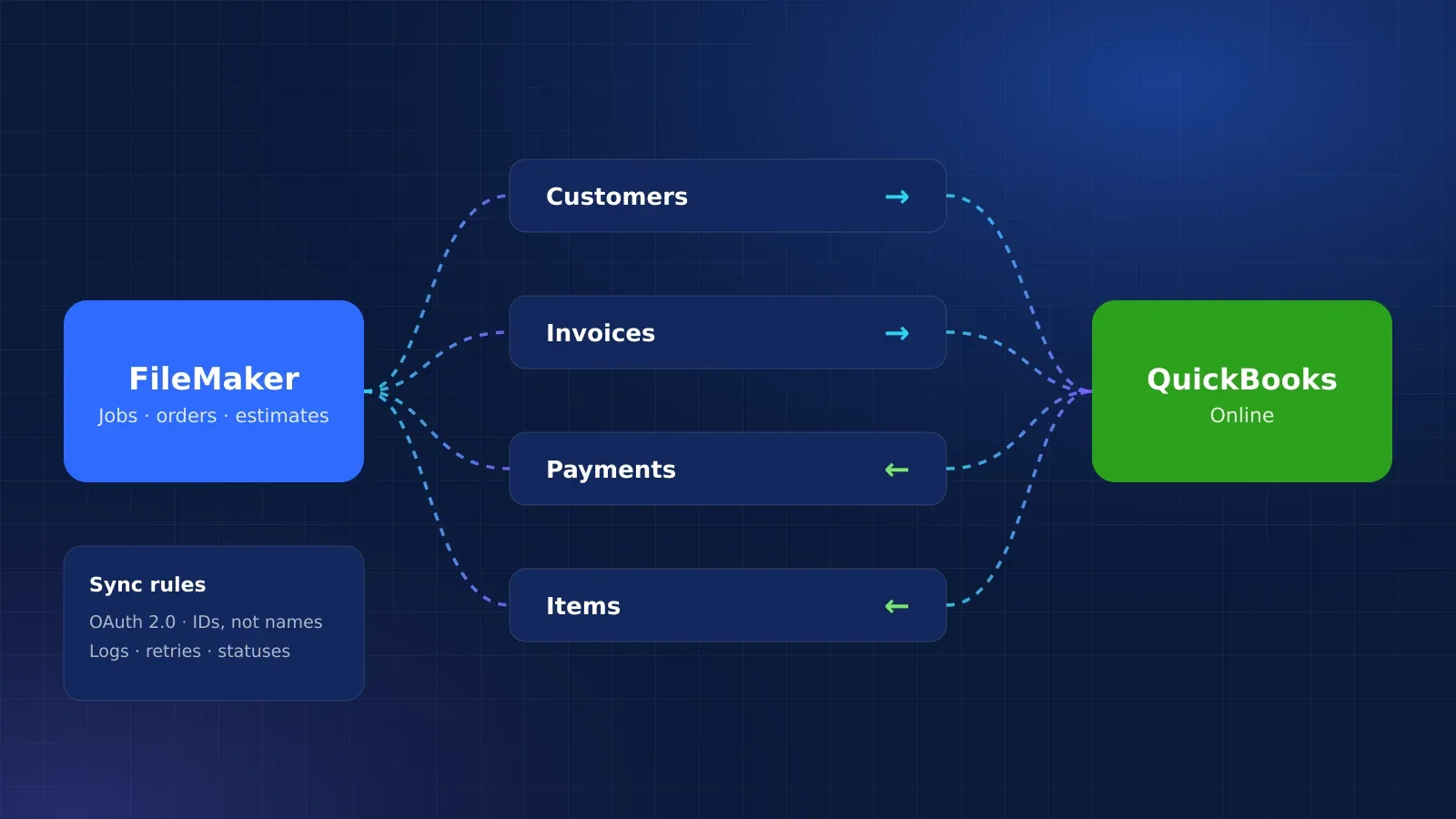
• Customers — so invoices land on the right account.
• Items — so lines use the correct income accounts and tax settings.
• Invoices — the main time saver.
• Payments — so staff in FileMaker see what has been paid without asking finance.
• Estimates, if your team converts quotes into invoices.
• Purchase orders and bills, if purchasing happens in FileMaker.
Usually better left in QuickBooks
• Journal entries and adjustments.
• Bank reconciliation.
• Payroll.
• Financial reports — read them in QuickBooks, or pull summary figures into a FileMaker dashboard.
Syncing less is not a weakness. Every extra entity adds rules, edge cases and support.
Your integration options
Option 1: Direct API integration from FileMaker
FileMaker scripts call the QuickBooks Online API directly using Insert from URL, JSON functions and OAuth 2.0. It is the most flexible option: any entity, any field, custom error handling, and the integration lives inside your solution.
Best for: businesses that want full control, custom invoice structures, or both directions of sync.
Consider: it needs a developer who knows both FileMaker and the QuickBooks API, and the token handling must be built carefully (see below).
Option 2: Claris Connect
Claris Connect, now included with FileMaker plans within tier limits, offers QuickBooks Online actions such as finding, creating and updating customers and creating invoices. Flows can be triggered from FileMaker.
Best for: simpler, one-direction flows such as “create the customer and invoice in QuickBooks when a job is completed”.
Consider: there are practical limits. Developers have reported that it can’t connect to Intuit sandbox companies (so testing needs a real or trial company), that some lookups by name aren’t available, and that variable numbers of invoice lines are awkward. Check your requirements against the current connector before choosing it.
Option 3: A plug-in or ready-made connector
Third-party products for FileMaker provide pre-built QuickBooks Online functions. They speed up common tasks and handle authentication for you.
Best for: standard sync needs where a licence fee is cheaper than custom development.
Consider: annual licence costs, and plug-ins need FileMaker Server (they are not supported on FileMaker Cloud). See FileMaker Cloud vs self-hosted FileMaker Server.
Option 4: General automation tools
Tools such as Zapier or Make can move simple records between systems. They are quick to set up but rarely suit invoice-heavy workflows with line items, tax and error handling.
Technical rules of the QuickBooks Online API
Whichever route you choose, these rules shape the design:
• OAuth 2.0. Access tokens last about an hour and must be refreshed. Since Intuit’s November 2025 policy change, refresh tokens have a maximum life of five years and rotate regularly — always store the newest token, because reusing an old one can break the connection.
• Rate limits. QuickBooks allows around 500 requests per minute per company, with limits on concurrent requests and stricter limits for reports and batch calls. Bulk syncs should be paced and retried on errors.
• Minor versions. API requests should specify a current minor version; older ones have been retired.
• Webhooks. QuickBooks can notify you when records change, but notifications are batched and only say what changed, so your integration must fetch the details.
• Sync tokens. Updates must include the record’s current SyncToken; if someone changed it in QuickBooks meanwhile, the update is rejected and must be retried with fresh data.
These details are where home-made integrations usually fail months after launch.
Designing a reliable sync
• Store QuickBooks IDs in FileMaker. Every synced customer, item and invoice keeps its QuickBooks ID, so records are matched by ID, never by name.
• Log every request and response. A sync log table makes problems visible and fixable by staff.
• Use clear statuses. “Ready to post”, “Posted”, “Error — see log” lets staff see what happened.
• Handle errors gracefully. Duplicate names, closed periods, missing tax codes and invalid items should produce readable messages, not silent failures.
• Make it idempotent. Re-running a sync must not create duplicate invoices.
• Run heavy syncs on the server. Scheduled server-side scripts keep users’ screens free.
• Test in a sandbox before connecting your live company file.
Typical costs
Costs depend on scope more than on the tool:
• A one-direction flow (customers and invoices to QuickBooks) is the smallest project.
• Two-way sync with payments, items and error handling is a medium project.
• Full accounting integration — estimates, purchasing, bills, multiple currencies or classes and locations — is larger and benefits from phasing.
Running costs are usually low: possibly a plug-in licence or Claris Connect usage within your plan, plus occasional maintenance when Intuit or Claris change something. Our FileMaker integration service scopes this in a short discovery session.
Common mistakes
• Matching customers by name instead of ID, creating duplicates.
• Letting both systems edit invoices after posting.
• Ignoring tax codes and income accounts until the first failed sync.
• Losing the refresh token and breaking the connection silently.
• No log, so nobody knows why an invoice is missing.
• Trying to sync everything on day one.
A phased plan
1. Map the data and agree the system of record for each entity.
2. Phase 1: customers and invoices from FileMaker to QuickBooks, with logs and statuses.
3. Phase 2: payments back to FileMaker so staff see balances.
4. Phase 3: items, estimates, purchasing or other entities as needed.
5. Review after a month-end close with your accountant.
Frequently asked questions
Can FileMaker connect to QuickBooks Online?
Yes. FileMaker can call the QuickBooks Online API directly from scripts, or use Claris Connect, a plug-in or another connector.
Is Claris Connect enough for a QuickBooks integration?
For simple, one-direction flows it can be. For complex invoices, two-way sync or detailed error handling, a direct API integration is usually more reliable.
Does the integration work with FileMaker Cloud?
Direct API integrations and Claris Connect work on FileMaker Cloud. Server plug-ins do not, so plug-in-based integrations need FileMaker Server.
Can we sync QuickBooks Desktop instead of Online?
QuickBooks Desktop uses different technology and connectors. The planning principles are the same, but the tools differ; ask about your specific edition.
How long does an integration take?
A focused customers-and-invoices integration can often be delivered in a few weeks; broader two-way integrations take longer and are best phased.
Will our accountant need to change anything?
Usually only to confirm item, account and tax mappings and to review the first syncs. Their input early avoids corrections later.
Conclusion
A FileMaker QuickBooks Online integration pays for itself quickly when it is planned around clear ownership of data, a small first scope and careful handling of QuickBooks’ tokens, limits and errors. Choose direct API, Claris Connect or a plug-in based on your complexity and hosting, not on what is quickest to switch on.
If you want to stop retyping invoices, tell us how your FileMaker and QuickBooks are used today. We will map what should sync, recommend the right approach and deliver it in phases through our FileMaker integration service — the same approach we describe in connecting FileMaker with web applications and APIs.
Related articles
Turn ideas into a working system
Share what you’d like to build or improve, and we’ll suggest a practical first step.