Development process
Still on an Old FileMaker Version? Upgrade Costs, Risks and a Safe Plan
By FileMaker Programmer team6 min read
In this article
Plenty of businesses run a FileMaker solution that “just works” on a version that is five, eight or even fifteen years old. Nobody wants to touch it in case it stops working. That instinct is understandable — and increasingly risky.
This guide explains why running an old version matters, what can break when you upgrade an old FileMaker version, what an upgrade typically costs, and a step-by-step plan that keeps the business running throughout.
How long Claris supports each version
Claris supports each major FileMaker release for two years from its release date. After that, the version reaches end of support: no further security patches, bug fixes or compatibility updates. With yearly releases, that means only the two most recent versions are supported at any time — today, FileMaker 2026 (released June 2026) and FileMaker 2025.
If your version is older, you are not alone, but you are carrying risk.
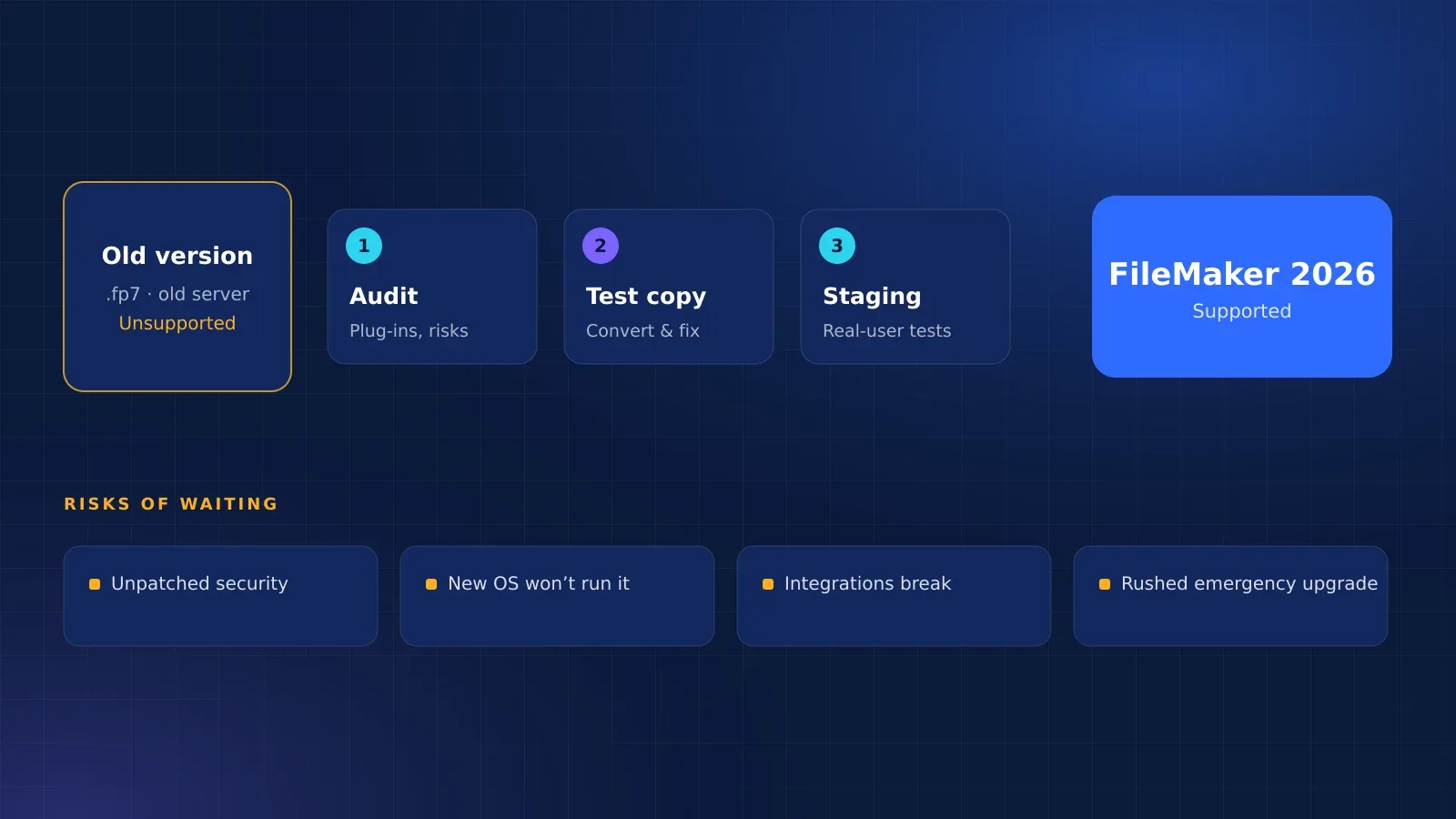
The risks of staying on an old version
Security
Known vulnerabilities in unsupported versions are never patched, and their details are public. FileMaker Server is often reachable from the internet for remote staff, mobile users or integrations, which makes an unpatched server a real exposure.
Operating system compatibility
New macOS and Windows releases eventually stop running old FileMaker versions, and new computers ship with those new systems. Many “urgent” upgrades start the day a new laptop can’t open the solution.
Server hardware and hosting
Old FileMaker Server versions only install on old server operating systems, which themselves fall out of support. You end up keeping an ageing machine alive because nothing newer will run the software.
Integrations
Payment gateways, accounting systems and web services change their security requirements and APIs. Old versions may not support the encryption, authentication or JSON handling those services now require.
Missing features you are paying for anyway
Recent versions include the Data API, JSON functions, better performance, modern layout tools, Claris Connect and Claris Studio within plan limits, and AI features. Staying on an old version means building workarounds for things the platform now does natively.
A forced upgrade at the worst time
The biggest risk is not the upgrade itself — it is doing it in a hurry, after a failure, with no testing.
What can break during an upgrade
Most solutions upgrade cleanly. These are the areas that need attention.
Very old files (.fp7 and earlier)
FileMaker 12 introduced the .fmp12 file format in 2012. Files from FileMaker 7 to 11 (.fp7) must be converted, and earlier formats need an extra conversion step. Conversion usually works, but layouts, fonts, graphics and some calculations need review afterwards.
Plug-ins
Older plug-ins may not exist for current versions, may need paid updates, or may have been replaced by native features. Plug-ins also aren’t supported on FileMaker Cloud. List every plug-in and every script that uses it.
Retired web publishing technologies
Instant Web Publishing was removed years ago and replaced by WebDirect. Older custom web publishing approaches, such as the PHP and XML interfaces, have been deprecated by Claris in favour of the FileMaker Data API and OData. Websites built on them need a plan before the server is upgraded.
Deprecated script steps and functions
A small number of script steps and functions have been deprecated or behave differently. A good developer checks the solution systematically rather than waiting for users to report problems.
Server configuration
New FileMaker Server versions change admin consoles, backup options, security defaults and SSL requirements. Schedules, backups and certificates must be set up again and tested.
Devices and users
Every computer and iPad needs the new FileMaker Pro or FileMaker Go, and users need a short briefing on anything that looks different.
What an upgrade costs
An upgrade has four cost parts:
1. Licences. You will need a current Claris plan. If you are still on old perpetual licences, budget for a subscription or volume agreement — see Claris FileMaker pricing in 2026.
2. Hosting. A supported server operating system and hardware, a new virtual server, a managed host or a move to FileMaker Cloud. Our comparison of FileMaker Cloud vs self-hosted FileMaker Server helps you decide.
3. Developer time. Review, conversion, fixes, testing and deployment. A clean, recent solution may need only a few days. Solutions that are very old, plug-in heavy or tied to legacy web publishing take longer.
4. Your team’s time for testing and a short training session.
Compared with a forced, emergency upgrade or a rebuild, a planned upgrade is almost always the cheapest option.
A safe upgrade plan
Step 1: Inventory
Record the current FileMaker Pro and Server versions, operating systems, file sizes, plug-ins, integrations, web connections, scheduled scripts, backup routine and every type of device in use.
Step 2: Audit the solution
A FileMaker system audit identifies deprecated features, plug-in dependencies, security gaps and performance issues before you upgrade — and tells you whether the solution is worth upgrading as it is or needs restructuring first. Our audit checklist shows what is covered.
Step 3: Work on a copy
Take a verified backup, convert or open a copy in the new version and run a consistency check. Never experiment on the live file.
Step 4: Fix and modernise
Replace or update plug-ins, rebuild retired web publishing on the Data API, correct deprecated steps and fix anything the conversion broke. This is also the right moment for small, valuable improvements — faster layouts, better navigation, stronger security.
Step 5: Set up a staging server
Install the new FileMaker Server (or FileMaker Cloud) in parallel with the old one. Configure SSL, backups, schedules, external authentication and integrations.
Step 6: Test with real users
Ask the people who use the system daily to run their real tasks: month-end reports, invoices, imports, mobile workflows and integrations. Fix what they find.
Step 7: Plan the switch
Choose a quiet time, freeze data entry, migrate the final data into the upgraded file, update client apps, test the critical paths and reopen. Keep the old server available, read-only, for a short period as a fallback.
Step 8: Stay current
After the upgrade, plan a smaller update every year or two. Staying within the supported versions is far cheaper than another big jump.
Upgrade, rebuild or migrate?
An upgrade keeps your existing solution. Sometimes the audit shows that the structure is so dated that a partial rebuild is better value, or that a different platform fits your future needs. Our honest guide to FileMaker alternatives covers that decision. For most businesses, upgrading first and improving in phases is the safest path.
Frequently asked questions
Which FileMaker versions are still supported?
Claris supports each major version for two years from release. Today that means FileMaker 2026 and FileMaker 2025.
Can we upgrade straight from a very old version?
Usually yes. Files from FileMaker 7–11 are converted to the .fmp12 format; older files need an extra step. Plan time to review layouts, scripts and plug-ins after conversion.
Will our data be safe during the upgrade?
Yes, with the right process: verified backups, work on copies, testing on a staging server and a fallback plan for the switch.
How long does an upgrade take?
Clean, recent solutions can be upgraded in days. Older or plug-in-heavy solutions with web publishing usually take a few weeks including testing.
Do we have to move to FileMaker Cloud?
No. You can upgrade on a new self-hosted FileMaker Server, use a managed host or move to FileMaker Cloud if your solution has no plug-in dependencies.
Can staff keep working during the upgrade?
Yes. Preparation and testing happen on copies and a staging server; the final switch usually takes a few hours outside business time.
Conclusion
An old FileMaker version keeps working until the day it doesn’t: a new laptop, an unpatched vulnerability, a changed integration or a failed server. A planned upgrade — inventory, audit, copy, fix, stage, test and switch — removes that risk and gives you years of new features you are already entitled to.
If your system is overdue, tell us which version you are on. We will assess the effort, flag anything that will break and handle the full FileMaker upgrade with no disruption to your team.
Related articles
Turn ideas into a working system
Share what you’d like to build or improve, and we’ll suggest a practical first step.